
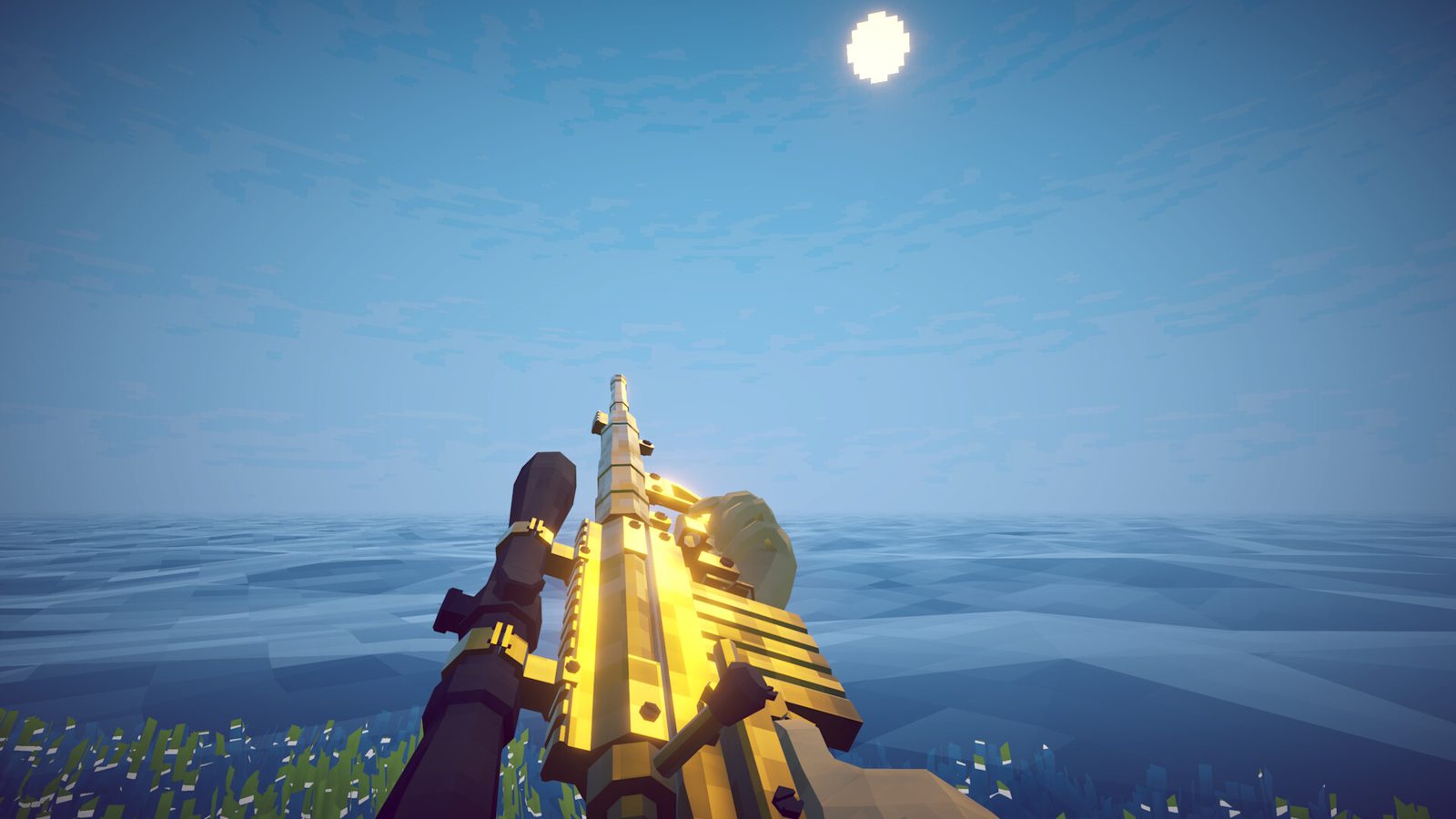
Most How to Fish problems split into two groups: a black or grey screen at startup, usually cleared by running the game as administrator or reinstalling, and online 'Connection Failed' errors, usually cleared by fully restarting Steam, updating every player, and verifying game files.
Start here: which problem are you hitting?
Almost every How to Fish issue lands in one of two buckets, and sorting yours first saves you from running fixes that were never going to help. The first bucket is a screen problem at launch, a black or grey screen where the game never draws its menu. The second is an online problem, a Connection Failed error or a black screen the moment you try to join or host a co-op lobby. The two share a few starting steps but diverge quickly after that.
If the game will not even reach the main menu, work through the black screen fix. If solo play launches fine but co-op fails, jump to the online and connection fix. This page is the overview that ties both together and lists the fast checks worth doing before you open either guide. Do the quick wins here once, then branch to the guide that matches your symptom.
Fast triage before anything else
Three checks fix a surprising share of problems and take under five minutes between them. First, fully restart Steam rather than closing the window, by right-clicking the Steam tray icon and choosing Exit, then reopening it. Second, confirm How to Fish is fully updated, because an out-of-date client can both crash on launch and refuse to connect. Third, verify the game files through the Steam Properties menu so a corrupt download is ruled out early.
These three steps overlap with almost every deeper guide, so doing them once here means you will not repeat them later. A full PC restart after verifying files is worth the extra minute, since it clears stalled processes that neither Steam nor the game will clean up on their own. Only move on to the bucket-specific steps if the problem survives all three. If it clears here, you are done and there is no need to touch firewall or network settings.
Startup black screen and grey screen
A launch that sits on a black screen, sometimes using almost no CPU, is the most reported startup fault. The community fix that has worked for several players is running the game as an administrator through its Compatibility settings, applied for all users. Others report that a clean uninstall and reinstall cleared it when the administrator toggle did not, so treat both as valid attempts rather than one right answer.
A related grey screen with a spinning Windows cursor has also been reported after updates, in at least one case leaving the mouse unresponsive on a second monitor. Dazed Games addressed a start-up grey screen in patch 1.0.4, noting they stopped forcing fullscreen mode, and fixed a black screen when joining a lobby in the same patch. If you are on an older build, updating alone may resolve it before you touch anything else. The full step list, including the exact administrator-toggle path, lives on the black screen fix page.
Online and Connection Failed errors
Co-op problems show up as a Connection Failed message in the top-right of the main menu, an unresponsive Create Session button, or a black screen the moment you join a lobby. The single most effective fix is a full Steam restart followed by confirming you are not in Offline Mode. After that, make sure every player is on the same game version, because one mismatched client can break the whole lobby.
A lobby left open for hours can drift out of sync, so having everyone leave and create a fresh session clears many join failures on its own. If one person cannot host, switch the host and have someone else create the lobby to isolate whose setup is at fault. VPNs, proxies and third-party antivirus tools such as Avast, Norton, Bitdefender or McAfee are common culprits, and even a single player's VPN can fail the group. The complete sequence, down to the firewall entries and the network-reset commands, is on the online fix page.
One error worth recognizing is a "No active Steam Networking connections" message, which shows up in the Steam Overlay when Steam's networking layer is not connected. Open the overlay with Shift and Tab while the game is running to check for it. If it appears, a full Steam restart plus confirming you are online is the correct response, not a game reinstall. That single line tells you the fault is in Steam's connection rather than in How to Fish itself.
Check your patch version first
How to Fish patched quickly after its August 20, 2026 launch, and several early bugs were fixed in updates rather than by anything you do locally. Patch 1.0.4 on August 21 targeted the join-lobby black screen and the start-up grey screen. Patch 1.0.6 on August 23 changed how saving works so the game no longer writes on a crash, and patch 1.0.9 on August 24 aimed to fix corrupted save files.
Patch 1.0.9 also added a Steam connection debug line in the main menu: if the Steam relay text turns red, the connection is failing at initialization, which sends you straight to the online guide. The larger 1.0.10 patch on August 27 increased the time allowed to connect, lowering the chance of an instant disconnect. Restart Steam to pull any pending update before you spend time on manual fixes, since the update may be the whole fix.
Save files, crashes and lost progress
Saving behavior changed across patches, so lost-progress complaints often trace back to an old build rather than a broken file. Since patch 1.0.6 the game saves when you press Save, Main Menu or Quit, and it still autosaves roughly every minute, so a crash should cost only a small amount of progress. If saves are corrupting or the game crashes when you equip a weapon, patch 1.0.9 was written to address exactly that.
If a bad save file is still blocking you, the developers point players to the Community Discord for the current instructions on removing it, since the safe location and method can shift between patches. Do not delete save data blindly, because the wrong file can cost you a full run. Update first, then follow the Discord steps rather than guessing at which file to remove.
When a fix still does not work
If you have run the triage and the bucket-specific steps and nothing helps, the issue is worth reporting rather than repeating. Dazed Games asks for bug reports in the bug-report forum of the official Community Discord, and the Steam community discussions are read as well. A clear report gets a faster answer than a vague one, and it helps other players who hit the same wall.
Include your game version, your region, whether solo play launches at all, and the exact behavior after you click Create Session. That set of details is precisely what the developers ask for on connection problems. The official Dazed Games site also lists an email contact, though the Discord bug forum is the faster route for something that is actively broken right now.
System requirements quick check
Some launch failures are simply a machine below spec, so a quick look is worth it before deeper troubleshooting. How to Fish is Windows only at the moment, with no Mac or Linux build, and needs a 64-bit Windows 10 or newer system. The listed minimum is an Intel Core i5-5257U or AMD Ryzen 3 1200, 8 GB of RAM, a GeForce GTX 1050 or AMD RX 460, a broadband connection and 1 GB of storage.
The game costs $7.99 on Steam as of 2026-08-28 and is developed and published by Dazed Games. A broadband connection is listed as a requirement even though single-player exists, so a genuinely offline setup may struggle to launch. If your hardware clears the minimum and the game still will not start, return to the black screen fix and work the list in order.
Quick fixes for common problems
Beyond the two deep-dive guides above, the faults below show up constantly in the Steam discussions, and each has a fix worth trying first. One term repeats: forcing DirectX 11, an older and more stable graphics mode than the default DirectX 12, clears a surprising range of black-screen, crash and stutter problems.
| Symptom | What to try first | Source and status |
|---|---|---|
| Black screen at launch or when joining a lobby; the game never draws its picture, though you may still hear audio | Force DirectX 11: in Steam, right-click How to Fish, open Properties, then General, then Launch Options, and enter -force-d3d11. If that does not help, rename the D3D12 folder in the game directory to D3D12_alt, run the game as administrator, or reinstall. | Community-verified workaround, shared through the official Discord. Patch 1.0.4 also officially fixed a start-up grey screen and a black screen when joining a lobby, so update first. |
| Constant crashing, sometimes every minute, or the game will not open at all | The same DirectX 11 switch helps: add -force-d3d11 (or -dx11) to the launch options, or rename the D3D12 folder. Update your graphics drivers, verify the game files and restart the PC before deciding it has not worked. | Community-verified workaround. No dedicated official crash patch exists as of 2026-09-02; 1.0.10 is the latest patch. |
| Stutter, screen tearing or a low frame rate even on a strong PC | Force DirectX 11, cap your frame rate (the game has a 500 FPS ceiling) and try V-Sync both on and off to see which is smoother, then verify files and update drivers. A later game update cleared it on its own for some players. | Community-verified workaround; not yet addressed by an official performance patch. |
| Repeated roughly 30-second freezes on Linux or Proton when Steam is installed as a Snap package | Give the Steam Snap permission to record audio, then fully restart Steam: run sudo snap connect steam:audio-record. The game opens a microphone capture stream that silently fails without this permission, which is what triggers the freezes. | Community-verified fix from one detailed report; Flatpak installs are untested. |
| "Connection Failed" at startup or when joining friends, or a Create Session button that does nothing | Fully restart Steam from the tray icon, confirm you are not in Offline Mode, make sure every player is on the same version, and verify files. Disable any VPN, proxy or third-party antivirus while you test. The full step list is on the online and connection fix. | Community and editorial steps. Patch 1.0.9 added a red Steam-relay warning line in the menu, and 1.0.10 increased the connection timeout. |
| Lost progress after formatting or reinstalling your PC | There is no recovery after the fact: saves, the compendium and skins are stored in local files, not in Steam Cloud, so wiping the machine wipes them. Back up the save folder before you reinstall or switch machines. | Confirmed by community reports. Save behavior is described in the official patch notes; 1.0.6 changed the game to save on Save, Main Menu or Quit rather than on a crash. |
| Money turns negative after a large roulette win | The game stores money as a 32-bit integer, so a very large payout overflows past its ceiling and wraps into the negatives. Start a new save, or use a Thunderstore cheat menu to set a positive balance back. | Community-verified; a known integer-overflow limit. See the mods overview for the cheat-menu route. |
Two rules cut across the table: update the game first, since several early bugs were fixed by patches, and remember the DirectX 11 switch is an unofficial workaround — widely reported to work, but not a fix Dazed Games has shipped.
In this section
How to Fish Black Screen Fix
Stuck on a How to Fish black screen at launch or when joining a lobby? Run as administrator, reinstall, or update past patch 1.0.4 to clear the startup hang.
How to Fish Online Fix (Connection Failed)
The How to Fish online fix for the Connection Failed error: restart Steam fully, verify game files, disable VPN, flush DNS, and rebuild a fresh co-op lobby.
Frequently asked questions
Why does How to Fish open to a black screen at startup?
The community fix that works for many players is running the game as an administrator through its Compatibility settings. If that fails, a clean uninstall and reinstall has cleared it for others. Make sure you are on the latest patch first, since patch 1.0.4 targeted a start-up grey screen.
How do I fix the Connection Failed error in How to Fish?
Fully restart Steam from the tray icon, confirm you are not in Offline Mode, then check that every player is on the same game version and verify the game files. VPNs, proxies and third-party antivirus are common causes and should be disabled while you test.
Why do I get a black screen only when I join a co-op lobby?
A lobby left open for several hours can drift out of sync and black-screen new joiners. Have everyone leave and create a fresh lobby. Patch 1.0.4 also addressed a black screen when joining, so update before anything else.
What does a red Steam relay line in the main menu mean?
Patch 1.0.9 added a Steam connection debug line to the main menu. If that text turns red, Steam's connection is failing at initialization, which points you straight at the online and connection fixes rather than the startup ones.
Is there an official patch that fixes every How to Fish error?
No single dedicated patch covers all variants. Patch 1.0.4 addressed some multiplayer and screen issues, and later patches added more. If nothing works, report your version, region, whether solo launches, and the exact Create Session behavior to the developers.
Are How to Fish saves stored in Steam Cloud?
No. Saves, your compendium and your skins live in local files on your PC, not in Steam Cloud or your Steam account, so formatting or reinstalling the game wipes them. Back up the save folder before you reinstall or move to a new machine, because there is no way to recover progress after it is gone.
Why did my money go negative after a big roulette win?
How to Fish stores money as a 32-bit integer, so a very large payout overflows past its ceiling and wraps around into the negatives. It is a known limit rather than a bug you can patch. Start a new save, or use a Thunderstore cheat menu to set your balance back to a positive number.
Sources checked 2026-09-02
Every guide is built from primary sources — the official Steam store, Dazed Games channels and hands-on player reports — each linked at the foot of the page. We don’t guess: if a detail isn’t sourced, it isn’t on the page. Prices and drop rates can shift with each patch or region.
- https://steamcommunity.com/app/4001890/discussions/0/582805931178510555/
- https://steamcommunity.com/app/4001890/announcements/
- https://progameguides.com/how-to-fish/how-to-fix-the-connection-failed-error-in-how-to-fish/
- https://store.steampowered.com/app/4001890/How_to_Fish/
- https://dazed.games/
- https://steamcommunity.com/app/4001890/discussions/0/581680664978493101/
- https://steamcommunity.com/app/4001890/discussions/0/581680664978472160/
- https://steamcommunity.com/app/4001890/discussions/0/582806239606619650/
- https://steamcommunity.com/app/4001890/discussions/0/581680664978576774/
- https://steamcommunity.com/app/4001890/discussions/0/582806523877560692/
- https://steamcommunity.com/app/4001890/discussions/0/581680955259004425/
- https://steamcommunity.com/app/4001890/discussions/0/581680955258979726/
- https://api.steampowered.com/ISteamNews/GetNewsForApp/v2/?appid=4001890&count=40&maxlength=0&format=json